Protect your banking
Stay scam aware
Scams are designed to deceive you. Remember, if it sounds strange or too good to be true, it probably is.
Stay alert
Don't click on links in unexpected messages, and if you get a call from someone claiming to be from Health Professionals Bank, hang up and call us on 1800 472 265.
We will never ask you:
Your card number, expiry, CVV or PIN
Your account details
Your password
Your One Time Password
To move money
To ‘rent’ your account
Download remote access software or access to your device
To collect your physical card
Protecting your passwords
Your logins are the keys to your accounts – keep them safe:
PIN
Choose a unique PIN that is difficult to guess. Never write it down or tell anyone.
If you need to, you can change your PIN in the app.
Passwords
Choose a unique, hard-to-guess password, including upper- and lower-case letters, numbers and symbols.
Don’t use names, sports teams, postcodes, phone numbers, birthdays or anything easy for a scammer to discover.
Remember, if you think there’s any risk it may have been compromised, you can change it in Internet Banking at any time.
One Time Passwords
For certain transactions or changes in Internet Banking, we’ll send a onetime password (OTP) via SMS or to your security token. It’s an extra layer of protection to confirm it’s really you.
Never share your OTP with anyone, in person or over the phone.
Online safety tips
Start by typing hpbank.com.au into your browser before you log in.
Look for a padlock next to the address at the top of your screen. This tells you it’s a secure, encrypted connection.
Choose reputable sellers and beware of imitations. If a deal looks too good to be true, it probably is.
Watch out for suspicious emails and don’t open them, click on links or open attachments.
Always log out of Internet Banking when you’re done.
Keep your devices safe
Use biometrics
Biometric log ins such as facial or fingerprint recognition are both faster and more secure. No need to remember long passwords to keep your personal data and accounts secure.
Choose auto-updates
Keep your operating system and apps up to date – updates often fix security gaps.
Turn on notifications
Push notifications let you know when money comes out of your account or when there is a message from us about your account.
Avoid public WiFi
Only use trusted, password-protected Wi-Fi or mobile data for banking.
Use built-in security features
Use your smartphone’s security features such as password protection and automatic screen locking. Choose a unique, hard-to-guess passcode and don’t tell it to anyone.
Use anti-virus software
Install and turn on security apps from reputable providers, including apps that can help you find or wipe a lost device.
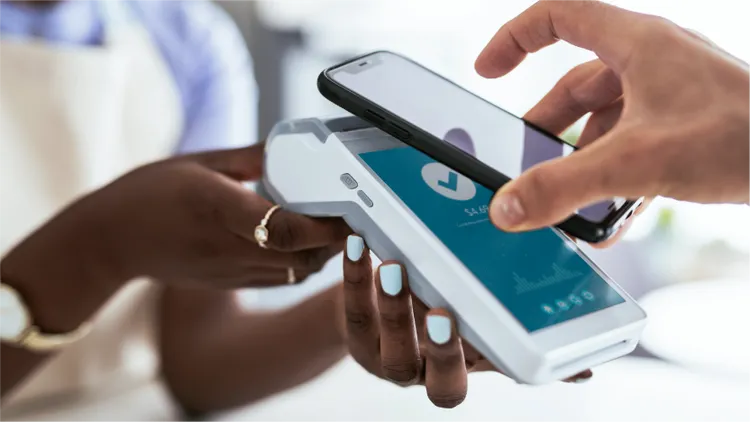
Pay securely with your phone or wearable
Use your Teachers Mutual Bank cards with Apple Pay, Google Pay or Samsung Pay for quick, contactless payments.
Your card number isn’t stored on your device or shared with retailers, so even if your device is lost, your wallet stays secure.
It’s a fast, secure way to make contactless payments up to $200. And because your card number is never shared with the merchant or saved on your device, you can be confident your details are secure.
Keep your cards safe
Call us immediately if your Visa card is used without permission or you suspect your account has been compromised.
1800 472 265 (8am–8pm AET weekdays, 9am–3pm AET Saturday).
Overseas: +61 2 9735 9151 or contact Visa Global Customer Assistance.
After hours: call our Fraud Bureau Service on 1300 705 750 or contact Visa Global Customer Assistance.
Your password is your key to convenient, secure banking. Keep it safe and if you think there’s any risk it may have been compromised, you can change it in Internet Banking at any time.
Here’s how to protect yourself:
- Choose a unique, hard-to-guess password between 6 and 16 characters, including upper- and lower-case letters, numbers and symbols. Don’t use people’s names, pets’ names, sports teams, postcodes, phone numbers, birthdays or anything else that’s easy for a scammer to discover.
- Never re-use a password from somewhere else.
- Memorise it. Don’t write it down, record it on your phone or computer, or tell anyone.
- Change it regularly.
- Shield the keypad when entering your PIN so no one can see it. Put your card and cash away before you walk off.
- Be cautious when strangers offer to help you at the ATM, even if you’re having problems.
- Avoid ATMs with unofficial signs or instructions, especially if the message is over the card reader.
- When you’re travelling overseas, choose ATMs in busy, well-lit areas. Stay alert and don’t accept help from anyone.
- Report suspicious behaviour to the police, the ATM owner and Teachers Mutual Bank.
Use the Mobile App to report a lost or stolen card.
1: Select the ‘Cards’ icon or ‘Manage cards’ in the menu
2: Tap Need help with your card?
3: Choose Damaged, Stolen or Lost
Or contact us on 1800 472 265 or +61 2 9735 9151 from overseas.
For Visa cards, visit Visa Global Customer Assistance.
Make sure your postal address is up to date in the My Details so we can send you your new card.
If you think a Visa card transaction was unauthorised, we can help dispute it.
Before you contact us
- Check whether a family member or someone else with access made the purchase
How we can help
- We’ll investigate and contact the seller’s bank to request a reversal where applicable. Make sure you report any problems as soon as you can. If you contact us after any time limit set by Visa – or if the purchase used Visa Secure – we may not be able to reverse it.
- Within 21 days of your complaint, we’ll update you on the outcome or let you know if we need more time. We’ll complete the investigation within 45 days, unless there are exceptional circumstances.
If you report unauthorised transactions on your card, we'll place a stop on the card to prevent any further transactions to protect you, then send you a new one.
Card transactions: Contact us or use the Mobile App to report your card so no further transactions can be made. Then complete the Disputed Card Transaction form.
Let us know you're travelling overseas
To make sure you can still bank while abroad, let us know your travel plans so we can keep an eye out for suspicious activity.
- Log in to Internet Banking
- Select Overseas travel notification in the Self Service menu.
- Add in your travel dates, the countries you’re visiting and contact details in case we need to reach you while you’re away.